Markdown with Tables in Ghost Articles
Ghost renders Markdown beautifully out of the box — until you paste a table. Depending on your theme, tables can wrap letter-by-letter, blow out the content column with horizontal scroll, or refuse to wrap long cells at all. The root cause is the theme's CSS: default Ghost themes style tables for small, tidy data (think two columns of numbers), not for prose-heavy tables with a wide "description" column. If you want clean, readable tables in your articles without hand-styling every one in an HTML card, you need to do three things: override the theme's table CSS globally, use the right editor card when pasting Markdown, and verify in a theme-rendered preview rather than the admin editor.
This guide walks through all three. It's written for the official Journal theme (what I'm using) but applies to any Ghost theme that uses the standard .gh-content wrapper (which is every official Ghost theme).
Step 1: Add global table CSS to the Code Injection panel
The Ghost Admin panel has a feature called Code Injection that lets you add arbitrary HTML — including <style> blocks — to the <head> or end of <body> of every page on your site. This is the right place to put styling overrides that should apply to every post, because it runs through your theme and loads after the theme's own stylesheet, which means your rules win the cascade.
Go to Ghost Admin → Settings → Code injection → Site Header and paste the following <style> block. If you already have other code there (e.g. JS snippets for site analytics), append this to the end — don't replace what's there.
<style>
  .gh-content table {
    width: 100%;
    border-collapse: collapse;
    margin: 1.75em 0;
    font-size: 0.92em;
    line-height: 1.45;
    table-layout: auto;
  }
  .gh-content table th,
  .gh-content table td {
    white-space: normal;
    word-break: normal;
    overflow-wrap: break-word;
    hyphens: none;
    padding: 10px 14px;
    vertical-align: top;
    text-align: left;
    border-bottom: 1px solid #e5e5e5;
  }
  .gh-content table th {
    border-bottom: 2px solid #333;
    font-weight: 600;
  }
  .gh-content table tbody tr:last-child td {
    border-bottom: 1px solid #333;
  }
  @media (max-width: 720px) {
    .gh-content table {
      display: block;
      overflow-x: auto;
      -webkit-overflow-scrolling: touch;
    }
  }
</style>
Click Save. Changes apply immediately on next page load — you don't need to re-publish any posts.
What each rule does, so you can tune it if you want:
table-layout: autolets the browser size columns based on content, so short headers like "Share" auto-width to fit their text and the long "Definition, Description, etc." column gets the remaining space.white-space: normalis the single most important line. Many Ghost themes setwhite-space: nowrapon table cells by default, which forces long prose into one line and triggers horizontal scroll. Overriding tonormallets text wrap naturally at word boundaries.word-break: normalplusoverflow-wrap: break-wordmeans text breaks at spaces for normal prose but still wraps unusually long single tokens (URLs, chemical formulas) rather than overflowing the cell.- The
border-bottomrules give you a clean editorial look: double rule under the header, thin rules between body rows, and a closing rule at the bottom. Remove or change them if you prefer a different style. - The
@media (max-width: 720px)block turns wide tables into horizontally-scrolling boxes on phones instead of crushing the layout. Wide tables on small screens are always going to be a trade-off — this is a clean default.
If you later find that a specific theme rule is winning the cascade over these, add !important to the offending line only, not to everything. The cleanest way to diagnose is to open a live post in Chrome DevTools, inspect a <td>, and look at the Computed panel to see which selector is sourcing white-space, word-break, or table-layout.
Step 2: Paste your Markdown into a Markdown card, not a rich-text paragraph
Ghost's editor has three content block types, and they are not interchangeable for Markdown content.
A default paragraph block is rich text. If you paste raw Markdown source (pipes, dashes, hash signs) into a default block, Ghost treats it as literal characters. You'll see pipe characters and dashes sitting on the page as plain text. Your table will not render at all.
A Markdown card is what you want. You add one by hitting Enter to start a new block, then typing /markdown and selecting the Markdown card from the menu. Once inside the card, Markdown syntax renders into HTML on publish. Tables, code blocks, ordered lists, callouts, headings — everything works.
An HTML card passes HTML through mostly intact. You'd use this if you were hand-writing HTML tables (as covered in earlier guides for one-off styling). Since we've solved the problem globally in Step 1, you shouldn't need HTML cards for tables anymore.
The recommended workflow for a Markdown-authored article:
- Open your source
.mdfile in your editor of choice (VS Code, Cursor, Obsidian, whatever) in source view, not preview. You want the raw Markdown text on your clipboard, not rendered HTML. - Select the entire article body and copy it.
- In the Ghost editor, hit
Enterto get to a new empty block, type/markdown, and select the Markdown card. - Paste the entire article into that single card. You don't need one card per section — Ghost handles long Markdown documents inside a single card just fine, and it keeps the editor simpler.
- Click outside the card. Ghost will render a preview in place.
A common mistake worth warning about: if you copy from a rendered Markdown preview (like the Cowork viewer, a GitHub blob page, or a .md file previewed in Obsidian), your clipboard carries HTML, not Markdown. Pasting that into a Markdown card will put HTML into the card, which mostly works but can cause weird styling artifacts and defeats the point of having a clean Markdown source. Always copy from source view.
If you work on articles across multiple tools, keeping a "ghost-snippets.md" scratch file of Markdown patterns you've verified render correctly (tables, callouts, code blocks, images) saves time. You can also use Ghost's built-in snippets feature (highlight a rendered block in the editor, click the snippet icon) if you'd rather keep reusable patterns inside Ghost.
Step 3: Verify in the theme-rendered Preview, not the admin editor
This is something that left me scratching my head for a while... but the solution is simple.
Ghost's admin editor does not apply your Code Injection CSS to the in-editor preview. When you click out of a Markdown card and see the rendered preview inside the editor UI, Ghost is using the admin application's own stylesheet — not your theme, and not your Site Header CSS. Your global table styles from Step 1 are absent from that view. If you judge whether your table looks right based on the admin editor, you will conclude the fix isn't working even when it is.
To actually test, use the Preview button in the top-right of the editor (the eye icon, labelled "Preview"). This opens a theme-rendered preview of your post at a URL like yoursite.com/p/<uuid>/. That URL goes through your actual theme, loads your Site Header CSS, and renders exactly how a published article will look. This is where you verify.
Three ways to verify in order of quickness:
- Preview URL. Fastest. Click Preview in the editor, view the post in a real browser tab, hard-refresh (
Cmd+Shift+R) if you've just updated Code Injection. - Private publish. If you want to check a specific post without making it public, publish it with visibility set to "Members only" or "Specific tiers" and view it while signed in.
- DevTools on any published post. Open any already-published article on your site, open DevTools, inspect a table cell, and confirm that the
.gh-content table th/tdrules are winning in the Computed panel. If they're not, look at which selector is winning and adjust.
A useful diagnostic: in DevTools, the Computed panel for a <td> should show white-space: normal, word-break: normal, overflow-wrap: break-word. If you see white-space: nowrap or word-break: break-all instead, the theme is still winning and you need either a more specific selector or targeted !important.
Troubleshooting checklist
Something still broken? Work down this list in order.
You saved Code Injection but nothing changed. You're looking at the admin editor preview, not a theme-rendered page. Click the Preview button and view the post in a real browser tab.
Table renders but the Definition column won't wrap and the table scrolls horizontally on desktop. Your theme has white-space: nowrap on cells and the Code Injection rule isn't winning. Confirm white-space: normal is present in your CSS, then in DevTools check the Computed panel for white-space on a <td>. If the theme rule is winning, add !important to the white-space: normal line only.
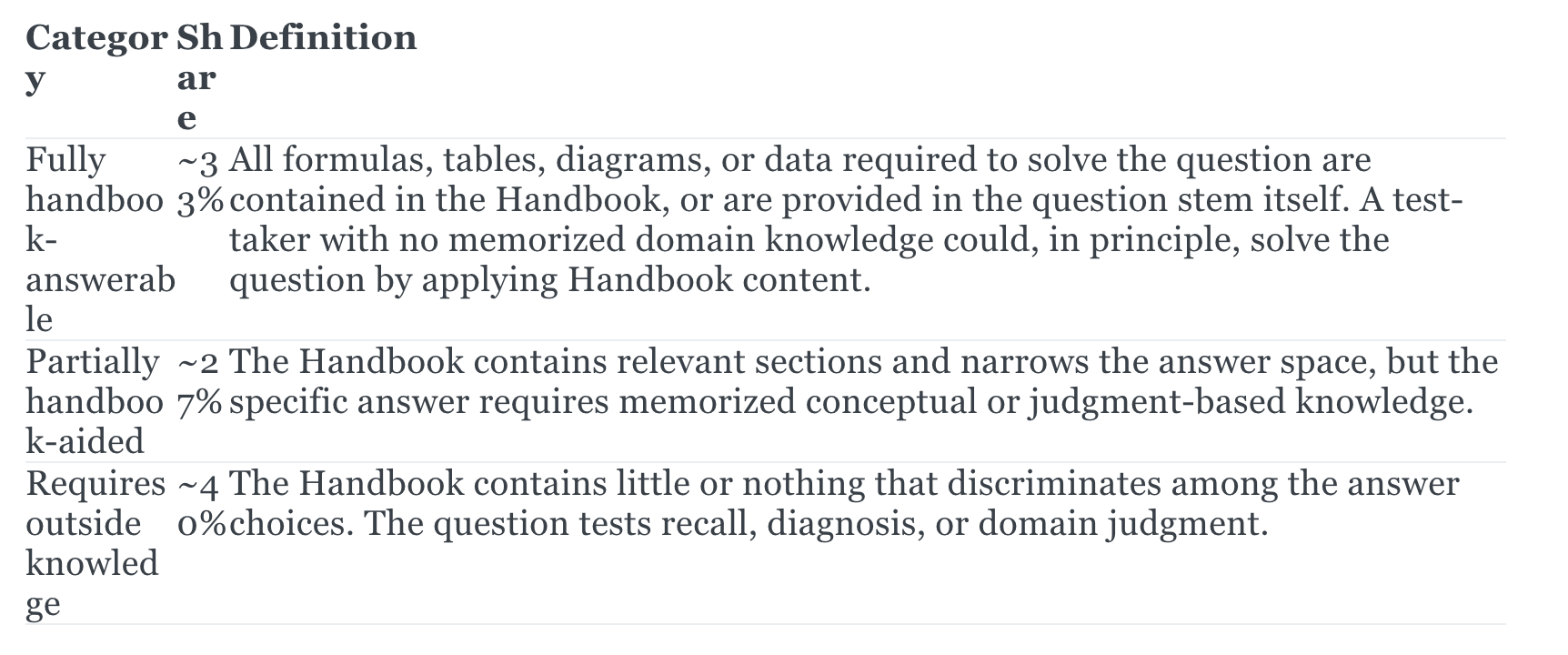
Table headers wrap letter-by-letter (e.g., "Category" becomes "Cat ego ry"). Classic word-break: break-all problem from the theme. Confirm word-break: normal; overflow-wrap: break-word; is in your CSS and winning.
Markdown table is showing as plain text with pipe characters visible. You pasted into a default paragraph block, not a Markdown card. Delete the block, hit /markdown, and paste again into the Markdown card.
Pasted Markdown rendered but with weird inline styles and colors. You copied from a rendered preview (browser, Obsidian preview, etc.) instead of source view. Clipboard has HTML. Re-copy from source view and paste again.
Styles work on one post but not another. Both posts render through the same Code Injection — there is no per-post exception. Check that the problem post isn't using an HTML card for its table (which bypasses your Markdown-card styling if the HTML has inline styles). Strip inline styles from any HTML-card tables, or convert them to Markdown cards.
Why this setup is worth doing once
Once Steps 1–3 are in place, your authoring workflow for new articles is: write Markdown in your editor → open source view → copy → paste into a Markdown card → preview → publish. Tables, headings, code blocks, images, and quotes all render consistently with no per-post styling work. The one-time cost of adding the CSS snippet and learning the Markdown card workflow is paid back on every subsequent article.
Final Tip
You can increase the width of your main content section on all articles by including the snippet below in the header of your site via Code Injection (same as above). I'm using the "Journal" theme and this works on it, but not sure if it'll work on all Ghost themes.
<style>
    .gh-canvas > * {
    grid-column: wide;
  }
</style>
This expands your content to match the width of the header/nav bar, which is the natural "wide" column already defined in Journal's grid. It seems to be the cleanest approach because it uses the theme's own grid system rather than overriding pixel values.
If you want even more control over the exact width, you can combine it with a content-width variable override:
<style>
  .gh-canvas > * {
    grid-column: wide;
  }
  body {
    --content-width: 1000px; /* change width here as desired */
  }
</style>
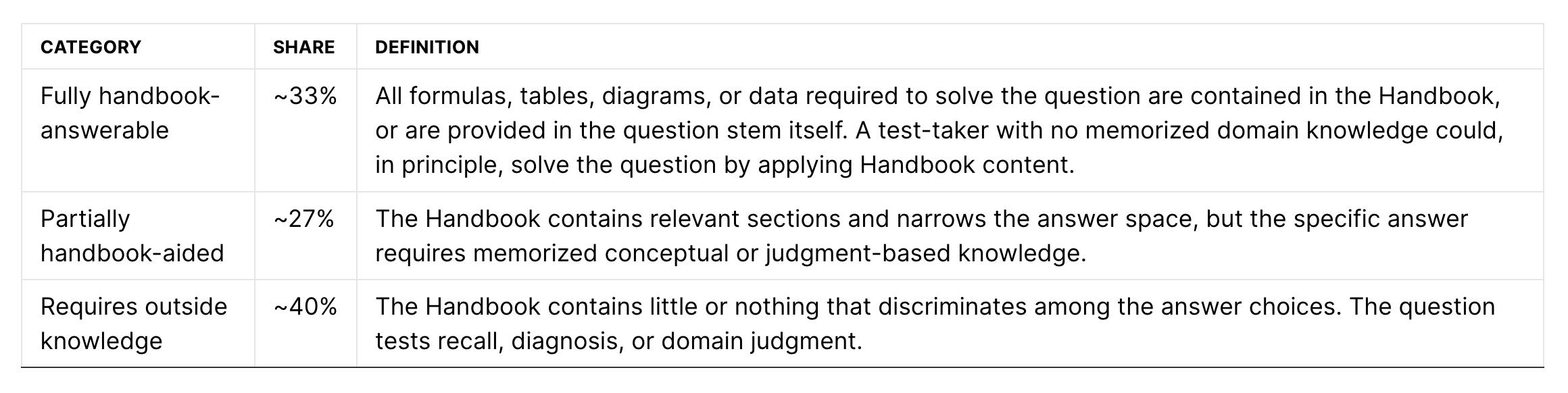
Result
You'll go from something that looks like this:
To this: